

How to View Hidden Comments on Instagram: Complete Guide
Instagram hides comments in more ways than most users realize. Some comments get filtered by the platform’s AI. Others disappear because of your own settings. And some are not hidden at all; they are just sorted out of view. This guide explains every type of hidden comment, where to find each one, and what you can and cannot access depending on your account type.
What Hidden Comments Actually Mean on Instagram
Instagram uses the phrase “hidden comments” to describe two completely different things, and mixing them up wastes your time.
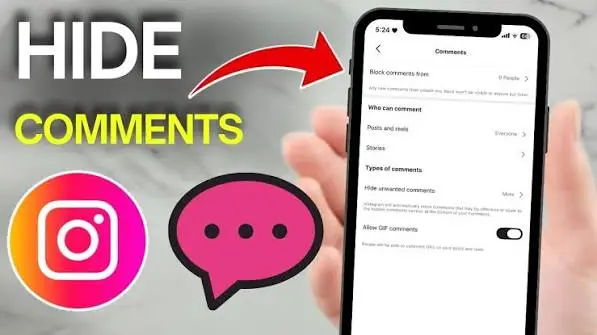
Manually hidden comments
The post owner swiped left on a comment (iOS) or long-pressed it (Android) and tapped “Hide.” The comment disappears from public view. The commenter still sees it as visible on their end and receives no notification. Everyone else simply cannot see it.
Auto-filtered comments
Instagram’s built-in AI scans every comment posted on the platform. Comments containing offensive language, spam signals, or flagged keywords get moved to a separate “Hidden Comments” folder automatically. The post owner may not even know this happened.
These two types sit in different places and require different steps to access.
How to View Hidden Comments on Your Own Posts
If you own the post, you have full access to both manually hidden and auto-filtered comments.
Step 1: Open the Instagram app and navigate to the post.
Step 2: Tap the comment icon to open the comments section.
Step 3: Scroll to the very bottom of the comment thread.
Step 4: Tap “View Hidden Comments” — this button only appears when hidden comments exist.
Step 5: Review the list. From here, you can tap “Unhide” to restore any comment to public view, or leave it hidden.
This folder captures both manual hides and auto-filtered comments in one place. Check it regularly; legitimate customer questions from real followers frequently end up here, caught by Instagram’s AI filter.

Why Comments Disappear: The Real Reasons
Most people assume hidden comments are always the cause. They are not. Here are all the actual reasons comments go missing:
The “Most Relevant” Sort Filter
This is the most overlooked cause. Instagram does not show every comment by default. It surfaces what its algorithm considers “most relevant” — typically comments from accounts you engage with frequently, or comments with the most likes.
New comments from unfamiliar accounts may not appear at all under this view.
Fix: Tap the sort icon at the top of the comment section and switch from “Most Relevant” to “Most Recent.” All comments load in chronological order. Comments you thought were hidden often reappear immediately.
Commenting Turned Off on That Post
If you see a comment count on a post but cannot view any comments at all, the post owner may have disabled commenting entirely. On your own posts, tap the three dots and check for “Turn On Commenting.” If that option appears, comments were off. Tap it and all previous comments return instantly.
Your “Allow Comments From” Setting
Go to Settings → Privacy → Comments → Allow Comments From. If this is set to “People You Follow” or “Your Followers,” Instagram blocks comments from anyone outside those groups — no notification sent, no visible error shown.
For business accounts especially, this setting should stay on “Everyone.” Restricting it blocks potential customers who discover your content through Reels or Explore before they follow you.
Your Hidden Words Filter Is Too Aggressive
Settings → Privacy → Hidden Words lets you add custom keywords. Any comment containing a word on your list gets auto-filtered. The problem: common words catch real questions.
If you added “buy,” “price,” “free,” or “link” to your filter list to stop spam, you are also hiding messages like “Where can I buy this?” and “What’s the price?” from genuine buyers.
Check your custom word list and remove anything broad enough to catch normal conversation.
According to Meta’s Transparency Center, Instagram’s AI filter also catches common misspellings automatically. Adding “scam” to your list also catches “sc4m” and “scaam.” This is useful for spam, but it means your filter is wider than the words you typed.
The Post Owner Restricted You
If you cannot see your own comments on someone else’s post, they may have restricted your account. Restriction is Instagram’s quiet moderation tool. Your comments look completely normal to you — you can like them, reply to them, but other visitors cannot see them. You receive no notification that this happened.
There is no way to check whether you have been restricted from within the app. The only indicator is that your comments receive no engagement from other users despite appearing visible to you.
How to View Hidden Comments on Someone Else’s Post
This depends entirely on the account type and your relationship to it.

Public accounts: If you can see the post, tap the comment icon and scroll to the bottom. If the account owner has auto-filtered comments, they sit in a hidden folder only the post owner can access. You cannot see them as a visitor — those are genuinely inaccessible to non-owners.
Private accounts: If you do not follow a private account, you cannot see any of its content, including comments. No tool or method changes this. Instagram does not serve that content to non-followers at all.
If you need to browse a public account’s comment sections or profile content without logging in or appearing as a viewer, HideViewer retrieves publicly available Instagram data anonymously through server-side requests. Your identity stays separate from Instagram’s tracking. This works for public profiles only — private account content is not accessible through any legitimate method.
The Comment Count Shows — But Comments Won’t Load
This is a technical issue, not a hidden comments issue. The number you see is cached. The actual comments failed to load from Instagram’s servers.
Work through these steps in order:
Step 1: Toggle your Wi-Fi off and on, or switch between Wi-Fi and mobile data.
Step 2: Close Instagram completely (swipe it out of recent apps) and reopen it.
Step 3 (Android): Go to Settings → Apps → Instagram → Storage → Clear Cache. This removes stale temporary files without logging you out.
Step 3 (iPhone): Delete and reinstall Instagram from the App Store. This achieves the same result.
Step 4: Check Downdetector.com and search for Instagram. If there is a widespread outage, the problem is on Instagram’s end and resolves on its own.
Your Own Comments Are Disappearing
If your comments vanish immediately after you post them on your posts or others’ Instagram has flagged your account for spam-like behavior. This is commonly called a shadowban.
Your comments appear normal to you. Nobody else can see them. Instagram does not notify you.
Common triggers: copy-pasting the same comment across multiple posts, commenting at high speed, or using third-party tools that Instagram has not approved.
Fix: Stop all commenting activity for 24 to 48 hours. When you return, vary what you write and slow your pace. The restriction lifts on its own. There is no appeal process and no way to speed it up.
Hide vs. Delete vs. Restrict: Which One Did They Use?
Understanding which action was taken on a comment tells you what is recoverable.
| Action | Comment Recoverable? | Commenter Notified? | Visible To |
|---|---|---|---|
| Hidden | Yes — tap Unhide | No | Post owner only |
| Deleted | No — permanent | No | Nobody |
| Restricted | Requires manual approval | No | Commenter + their followers |
| Auto-filtered | Yes — in Hidden Comments folder | No | Post owner only |
Hidden and auto-filtered comments are always recoverable. Deleted comments are gone permanently — Instagram does not offer an undo. If a comment disappeared and “View Hidden Comments” shows nothing, it was deleted, not hidden.
What Hiding Does Not Do (Common Misconceptions)
Hidden comments still count toward your total comment number. Instagram’s algorithm counts the engagement signal from a hidden comment. Hiding does not reduce your comment count or hurt your reach. Deleting it removes the comment from all metrics.
The commenter does not know their comment is hidden. They see it exactly as posted. They can interact with it. Instagram sends no notification of any kind.
You cannot view hidden comments on someone else’s posts. Only the post owner accesses the hidden folder. This is intentional — hidden comments are a private moderation tool, not a visibility toggle.
FAQs
Why does my post show 40 comments but only 12 are visible?
Switch the sort order from “Most Relevant” to “Most Recent.” Instagram’s algorithm filters the view by default. Switching to chronological order shows every comment.
Can I unhide a comment that was automatically filtered?
Yes. Go to the post, open comments, scroll to the bottom, tap “View Hidden Comments,” find the comment, and tap “Unhide.” It returns to public view immediately.
Will the person know I unhid their comment?
No. Neither hiding nor unhiding triggers a notification to the commenter.
Can I see who hid their comments on a public post?
No. The hidden comments folder is private to the post owner. Visitors have no access to filtered content.
Why are my keyword filters catching normal comments?
Review your custom word list under Settings → Privacy → Hidden Words. Remove any broad terms like “free,” “price,” or “link” that appear in regular conversation. Keep filters specific to actual spam patterns.
Does hiding comments affect Instagram’s algorithm?
No. Hidden comments still register as engagement. Only deleting a comment removes it from Instagram’s engagement count.
Final Thoughts
Most “hidden comments” are not actually hidden; they are sorted out of view by Instagram’s relevance filter, caught by an overly broad keyword setting, or blocked by a privacy restriction you set and forgot about. Switching to “Most Recent” and reviewing your Hidden Words list solves the majority of cases in under five minutes.
For comments that are genuinely hidden by auto-filtering, the “View Hidden Comments” button at the bottom of your post gives you full access as the post owner. Check it regularly — real engagement from real followers ends up there more often than most accounts expect.
What no tool can access are hidden comments on posts you do not own, or any content from private accounts you do not follow. That content is not retrievable through any legitimate method.


